Linking a Windows device to your team
Please follow the instructions below to link a device to your team.
Steps to link your device
Install the app
Go to Pareto Security’s Windows installation page to download the app.
Open the Join Team link
Your URL will appear as follows:
https://cloud.paretosecurity.com/join/a123-bcd4-e567-f879-gha
This URL is unique to your team.
Enter your email
Enter your work email address and click Join. You’ll then see a prompt asking if you want to open the ParetoSecurity application handler. Please confirm this security dialog to continue.
If joining is successful, you will receive a desktop notification indicating that your device has been linked. If the joining fails, please get in touch with us with as many details as possible about what happened.
Manual Linking Instructions
If automatic linking doesn’t work for some reason, follow these steps:
Go back to the linking page
In the Device Wizard in the browser, click on Link to go back to Step 2.
Get the manual linking command
Click on Linux tab to get terminal command, copy it.
Open Pareto Security folder
In Windows, right click on Pareto Security shortcut, then Open file location.
If you can’t find the shortcut, open
C:\Users\<YourUsername>\AppData\Roaming\ParetoSecurity
or wherever you installed the app.
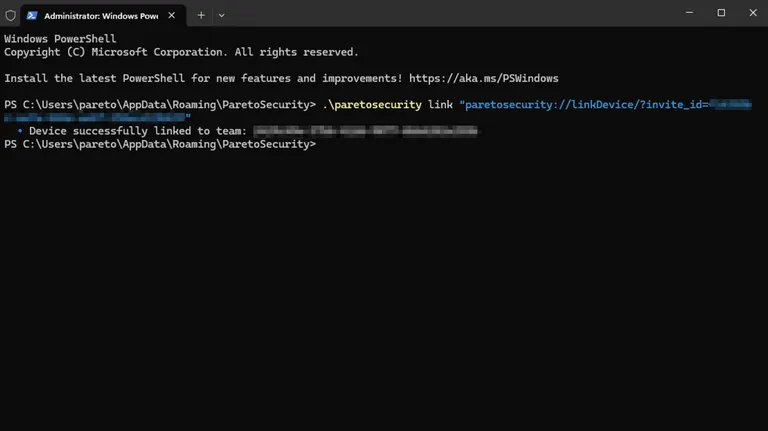
Open Terminal
In the opened folder, right click, then Open in Terminal.
Run the command
In Terminal, type .\, then paste the manual linking command, then hit Enter.